There are several ways we can connect to the Oracle Cloud Database. I will review using Putty, Oracle Sql Developer, and local Sqlplus.
Putty access via SSH
1. Login to the DBCS Dashboard page. Click on the instance that you wish to connect to using SSH. Locate the IP address.

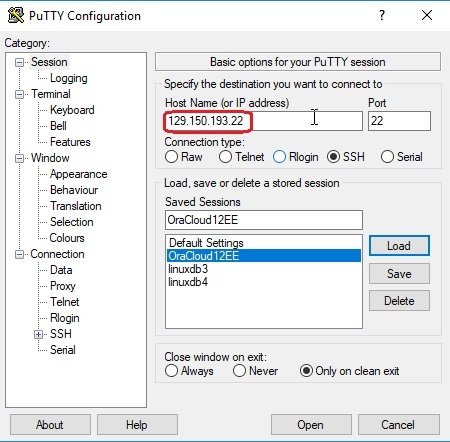
2. Open the Putty program and enter the name and IP address.
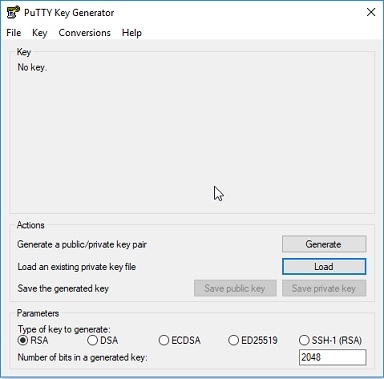
The Private key downloaded, for the Cloud Database created, needs to be converted into a format that Putty can use. For this we use the Putty Key Generator program.
Click on the Load button to locate and accept the Oracle private key for comversion.
Accept the default configuration choices of RSA and 2048 bits.
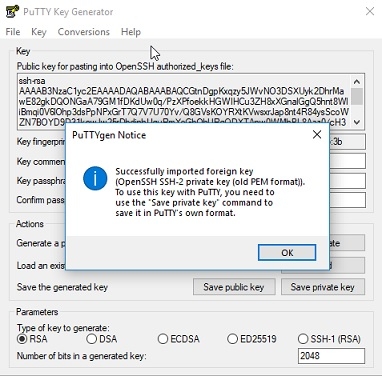
Once the key is generated, save it to your chosen directory.
Click on the “Save private key” button
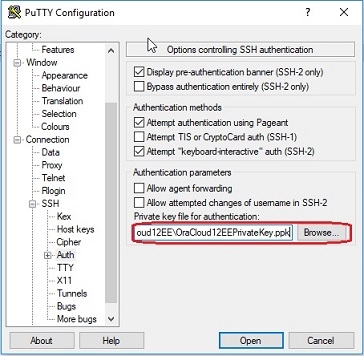
The new Putty private key file can now be imported into Putty.
Under Category --> Connection --> SSH --> Auth. Use the Browse button to locate the Putty private key file
Next add the oracle name for auto-login in Connection --> Data
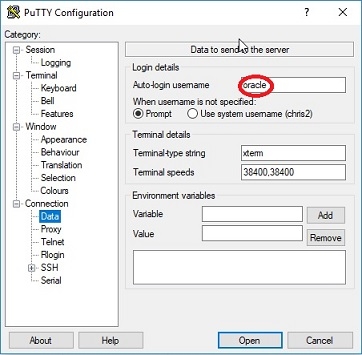
Go back to Session and click on the Save button. You are now ready to connect to the Oracle Cloud Server.
Click on the “Open” button
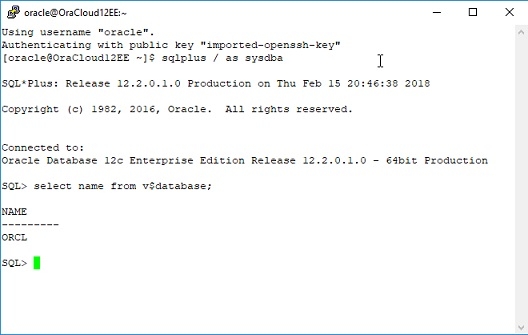
Oracle SQL Developer access using SSH
Start Sql Developer program on your machine
First, setup the SSH. Go to View -> SSH. A left column section will be added.
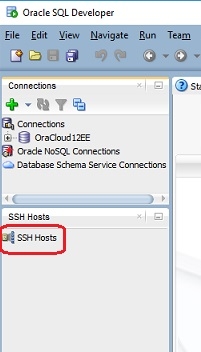
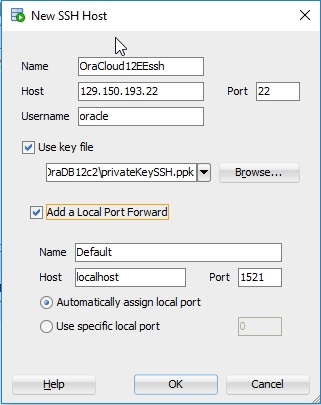
Right click on the SSH Hosts icon to get the ‘New SSH Hosts’ window. Fill in the information:
Connection Name - any name for the connection
Host - the IP address for the database
Username - oracle
Check the ‘Use key file’ box and use the Browse button to choose the downloaded Private key or the Putty private key file that was previously made for the Putty setup.
Check the ‘Add a Local Port Forward’ box and keep the defaults.
Click the OK button and your SSH portion of the setup is completed. Now a connection can be created using SQL Developer’s New Connection setup.
Click on ‘New connection’ icon. In the New Connection window put in your information:
Connection Name - any name for the connection
Username - use a login user name (ex. system, sys as sysdba)
Password - use password included in service credentials download
Connection Type - choose SSH from the drop down menu
SID - use the SID of the database to connect to the root of the container database.
Click the Test button to verify setup works.
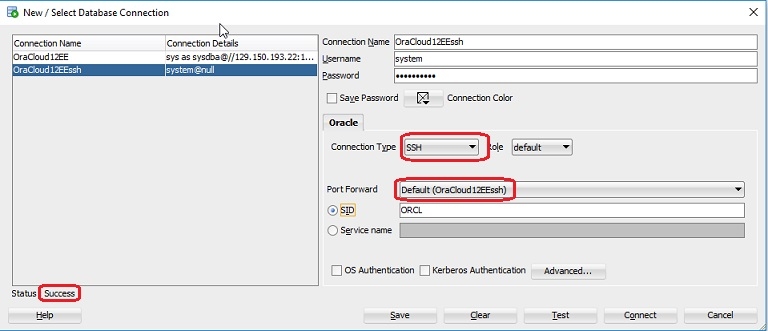
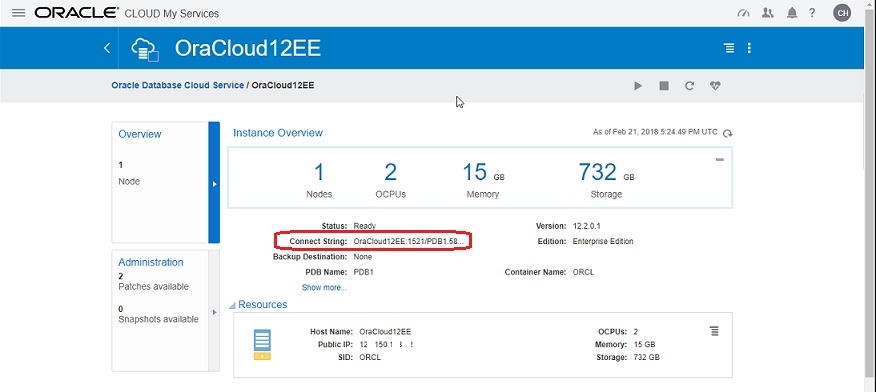
To create a connection to a pluggable database use the Connect String shown in the Oracle Cloud Instance Overview:
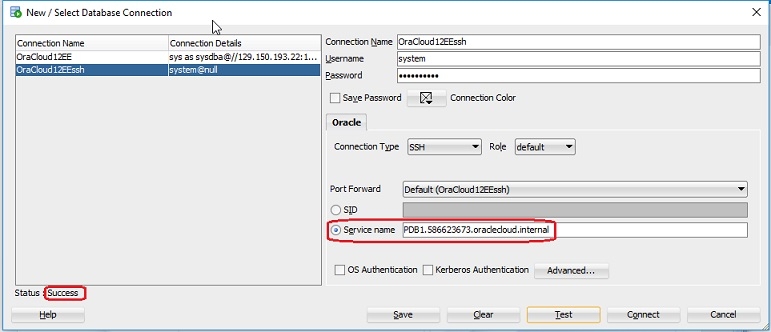
Enter the Connect String for the Service Name:
Connections without using SSH.
The following connections will work but are unsecured and not recommended. I am surprised Oracle allows these connections
Oracle SQL Developer access
Start Sql Developer program on your machine
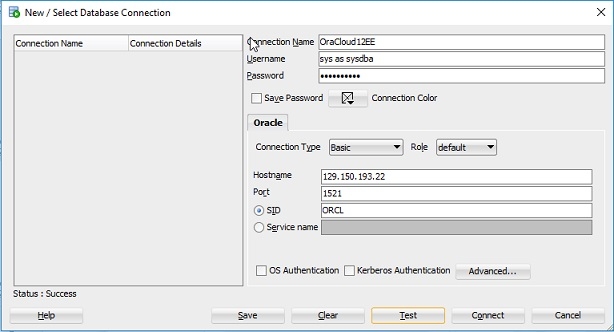
Click on ‘New connection’ icon. In the New Connection window put in your information:
Connection Name - any name for the connection
Username - use a login user name (ex. system, sys as sysdba)
Password - use password included in service credentials download
Connection Type - the default is Basic
SID - use the SID of the database to connect to the root of the container database.
Click the Test button to verify setup works.
SQL Plus access
Setup the tnsnames.ora file for the root and the pluggable database of a container database. Notice that the pluggable database’s Service Name uses the Connect String from the Instance Overview
_________________________________________________________
ORACLOUD12EE =
(DESCRIPTION =
(ADDRESS_LIST =
(ADDRESS = (PROTOCOL = TCP)(HOST = 129.150.193.22)(PORT = 1521))
)
(CONNECT_DATA =
(SID = ORCL)
)
)
PDB1 =
(DESCRIPTION =
(ADDRESS_LIST =
(ADDRESS = (PROTOCOL = TCP)(HOST = 129.150.193.22)(PORT = 1521))
)
(CONNECT_DATA =
(SERVICE_NAME = PDB1.586623673.oraclecloud.internal)
)
)
_________________________________________________________
Invoke the sqlplus program as you normally would for an onsite database.
Here is an example for accessing the root database:
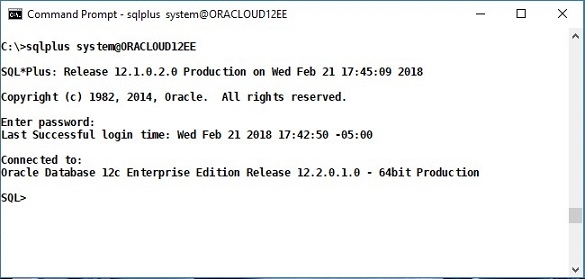
Accessing the pluggable database is the same since the Connect String has already been added to the tnsnames.ora file that the sqlplus program uses.
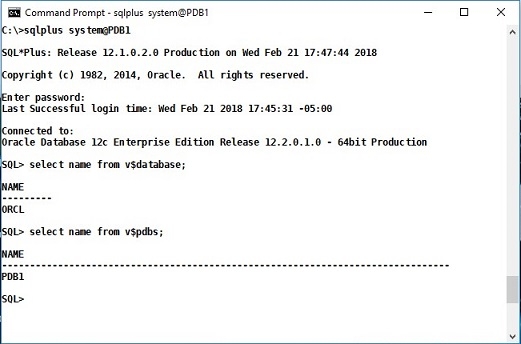
Once again this method should not be used. Oracle allows this type of connection but it is not secure.
